
Introduction
Google Sheets is a common name many people use when referring to Google Sheets, Google’s cloud-based spreadsheet application included with Google Workspace. Unlike traditional spreadsheet software that stores files on one computer, Google Sheets saves everything securely in the cloud, allowing users to create, edit, and share spreadsheets from virtually any device with an internet connection. According to Google Workspace, millions of organizations worldwide use its productivity tools to improve teamwork, simplify data management, and streamline everyday workflows through cloud-based collaboration.
Why Google Sheets Is One of the Most Powerful Productivity Tools
Google Sheets has become one of today’s most valuable productivity tools because it combines spreadsheet functionality with real-time collaboration, automation, and cloud accessibility. Teams can simultaneously update data, leave comments, assign tasks, and monitor changes without creating duplicate files. Its integration with Google Drive, Google Forms, Gmail, and third-party applications helps automate repetitive work while reducing manual errors.
Advanced features such as pivot tables, conditional formatting, charts, and built-in AI-powered assistance further improve decision-making. This flexibility makes Google Sheets equally useful for personal budgeting, business reporting, education, project planning, and data analysis.
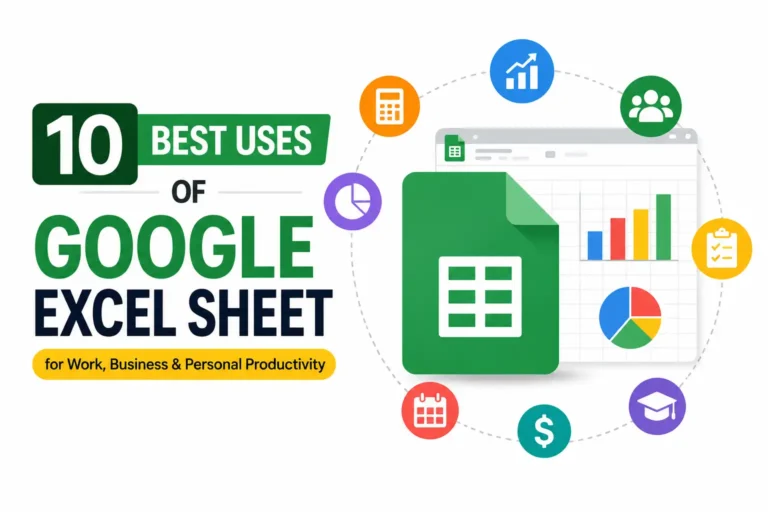
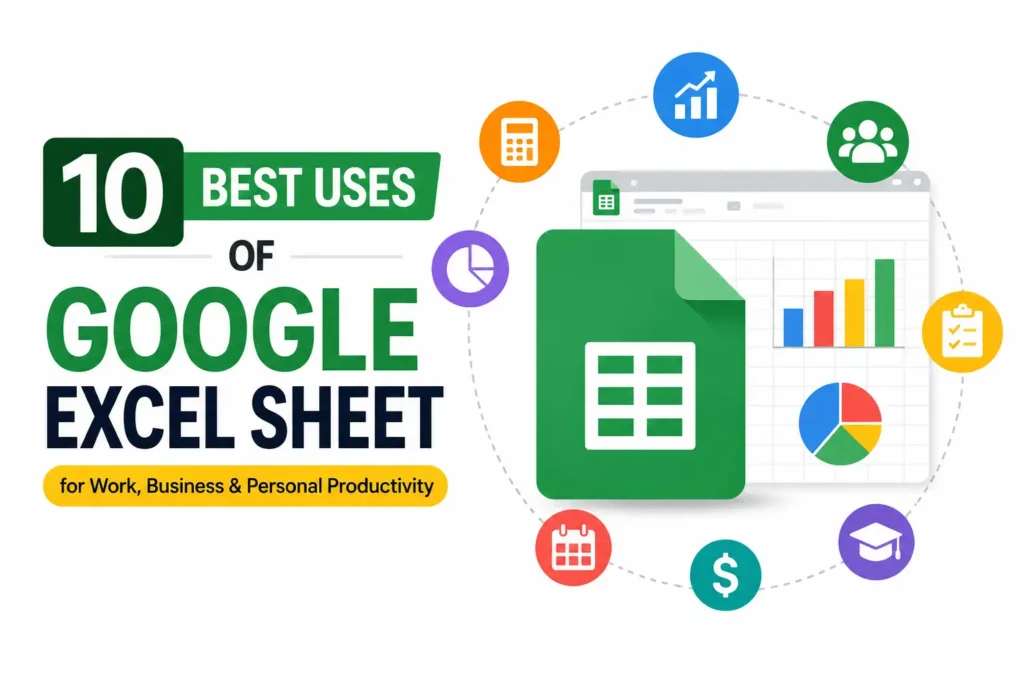
10 Best Uses of Google Sheets
Budget Planning and Personal Finance Tracking
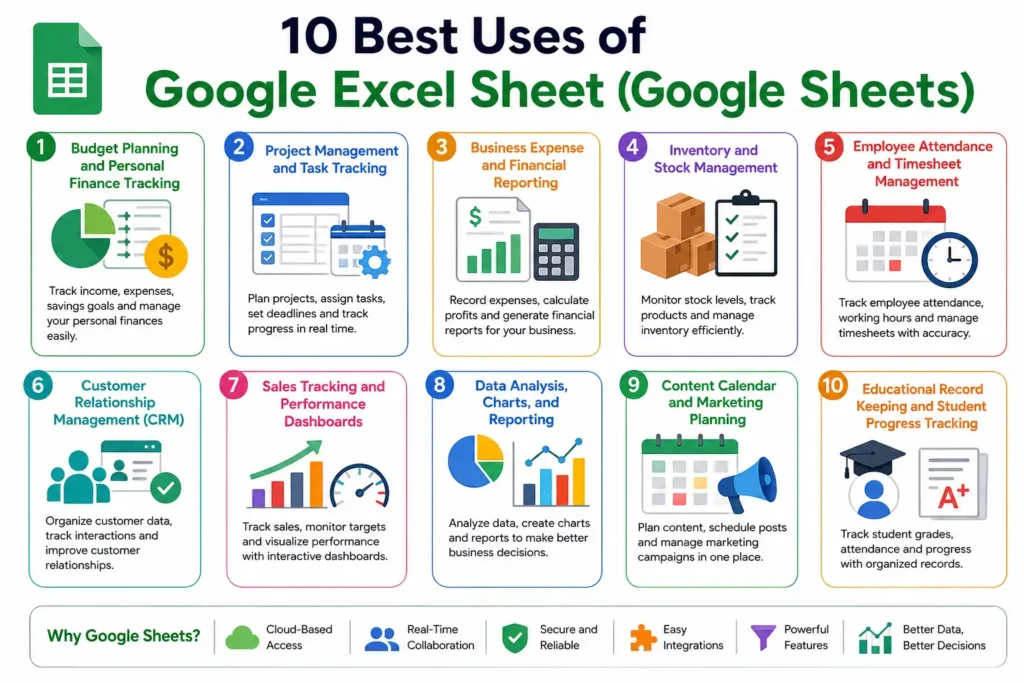
Google Sheets makes personal budgeting simple by organizing expenses, savings goals, and monthly spending in one place. Built-in formulas automatically calculate totals, while charts visualize financial habits. Users can create custom budget templates or choose free templates from Google. Cloud syncing ensures financial records remain updated across devices, helping individuals make smarter financial decisions and stay within budget.
Project Management and Task Tracking
Project managers use Google Sheets to assign responsibilities, monitor deadlines, prioritize work, and track project progress in real time. Conditional formatting highlights overdue tasks, while filters organize workloads efficiently. Team members can collaborate simultaneously, reducing communication delays. This affordable solution works especially well for small businesses, remote teams, marketing campaigns, and freelance project management.
Business Expense and Financial Reporting
Businesses use Google Sheets to record operating expenses, monitor revenue, calculate profits, and prepare financial reports. Built-in formulas reduce manual calculations, while charts simplify financial analysis. Small businesses particularly benefit because they can share financial data securely with accountants or managers without purchasing expensive accounting software, improving transparency and decision-making throughout the organization.
Inventory and Stock Management
Google Sheets provides an effective inventory management system for tracking products, stock levels, purchase orders, and supplier information. Businesses can monitor low inventory using conditional formatting and automate stock calculations through formulas. Real-time updates help warehouse teams, retailers, and eCommerce businesses maintain accurate inventory records while minimizing costly stock shortages or overstock situations.
Employee Attendance and Timesheet Management
Organizations frequently use Google Sheets to track employee attendance, working hours, overtime, vacation requests, and payroll information. Shared spreadsheets allow managers and HR teams to update records instantly while maintaining transparency. Automated calculations reduce payroll errors and simplify workforce management, making Google Sheets an efficient solution for businesses of every size.
Customer Relationship Management (CRM)
Small businesses often build lightweight CRM systems using Google Sheets to organize customer contacts, sales activities, follow-up schedules, and communication history. Shared access keeps sales teams aligned while filters help locate customer information quickly. Combined with Google Forms and automation tools, Sheets becomes an affordable customer management solution without expensive CRM software.
Sales Tracking and Performance Dashboards
Sales teams use Google Sheets to monitor revenue, conversion rates, sales targets, and team performance through interactive dashboards. Charts and pivot tables transform raw sales numbers into meaningful insights. Managers can identify trends, evaluate performance, and adjust strategies faster, supporting better forecasting and improved business growth throughout each sales cycle.
Data Analysis, Charts, and Reporting
Google Sheets includes powerful analytical tools for organizing datasets, identifying trends, and presenting information visually. Features like pivot tables, filters, charts, and statistical functions simplify complex analysis without requiring advanced technical skills. Businesses, researchers, and analysts use these capabilities to generate reports, support decision-making, and communicate findings more effectively.
Content Calendar and Marketing Planning
Marketing teams rely on Google Sheets to organize editorial calendars, social media schedules, campaign timelines, keyword research, and content publishing plans. Shared access improves collaboration between writers, editors, designers, and marketers. Color coding, filters, and status tracking help ensure campaigns remain organized, deadlines are met, and marketing activities stay aligned with business goals.
Educational Record Keeping and Student Progress Tracking
Teachers and educational institutions use Google Sheets to record attendance, grades, assignments, and student performance throughout the academic year. Built-in formulas automatically calculate averages and progress, reducing administrative work. Cloud collaboration also allows educators to share reports with colleagues while maintaining organized academic records that support informed teaching decisions.
Essential Google Sheets Features That Improve Productivity
Formulas and Built-in Functions
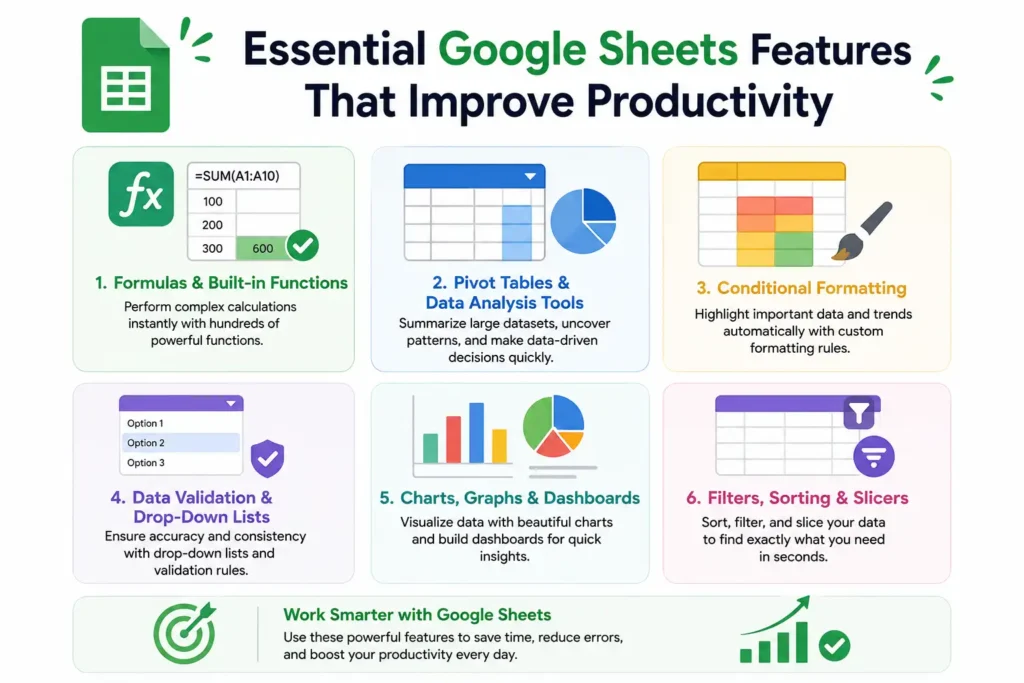
Google Sheets offers hundreds of built-in functions, including SUM, IF, VLOOKUP, XLOOKUP, FILTER, QUERY, INDEX, MATCH, and ARRAYFORMULA, making calculations faster and more accurate. These functions automate repetitive work, reduce human error, and simplify everything from budgeting to financial analysis. Users can also leverage AI-powered formula suggestions to speed up spreadsheet creation.
Pivot Tables and Data Analysis Tools
Pivot tables help users summarize thousands of rows of data within seconds. Instead of reviewing raw information manually, businesses can quickly analyze sales, expenses, customer trends, or inventory performance. Combined with filters, slicers, and calculated fields, Google Sheets makes it easy to transform complex datasets into meaningful insights for smarter business decisions.
Conditional Formatting
Conditional formatting automatically changes cell colors based on rules you define, making important information stand out instantly. Businesses use it to highlight overdue invoices, low inventory, missed deadlines, and top-performing sales figures. This visual organization reduces manual review time and helps users identify trends or issues before they become larger problems.
Data Validation and Drop-Down Lists
Data validation improves spreadsheet accuracy by limiting what users can enter into specific cells. Drop-down lists create standardized entries, reducing typing mistakes and maintaining consistent records across teams. This feature is especially valuable for project tracking, inventory management, employee records, customer databases, and collaborative business spreadsheets with multiple contributors.
Charts, Graphs, and Dashboards
Google Sheets converts raw numbers into professional charts, graphs, and interactive dashboards that are easy to understand. Bar charts, pie charts, line graphs, and scorecards help visualize trends and key performance indicators (KPIs). Decision-makers can monitor business performance at a glance without manually interpreting large volumes of spreadsheet data.
Filters, Sorting, and Slicers
Filters, sorting options, and slicers allow users to organize large spreadsheets quickly without modifying the original data. Teams can instantly locate specific records, sort information alphabetically or numerically, and display only relevant results. These tools significantly improve productivity when managing customer databases, financial reports, inventory lists, or project schedules.
📌 Don’t Miss These Articles: Best 12 Unique Business Ideas to Start in 2026
Google Sheets Helps Businesses Automate Everyday Work
Modern businesses rely on automation to save time, reduce operational costs, and improve accuracy. Google Sheets supports automation through built-in tools, Google Apps Script, Google Forms, and integrations with hundreds of business applications. These capabilities eliminate repetitive manual tasks while keeping information synchronized across teams.
According to Google Workspace, organizations can automate workflows, generate reports, collect data, and connect business systems without investing in expensive enterprise software. As a result, companies of every size can improve efficiency, minimize human error, and focus more on strategic growth instead of repetitive administrative work.
Automating Repetitive Tasks with Google Apps Script
Google Apps Script allows users to automate repetitive spreadsheet tasks using JavaScript. Businesses can automatically send new emails, generate real invoices, update spreadsheets, create reminders for clients, or process data without any manual effort. This powerful automation tool saves hours of repetitive work while improving consistency and reducing operational errors across everyday business processes.
Collecting Data with Google Forms
Google Forms integrates seamlessly with Google Sheets, automatically storing every submitted response in a spreadsheet. Businesses use this combination for customer surveys, employee feedback, event registrations, lead generation, and internal requests. Since responses update instantly, teams can analyze incoming data in real time without manually entering information.
Creating Automated Reports
Google Sheets can generate automated reports by combining formulas, pivot tables, charts, and scheduled data updates. Businesses create daily, weekly, or monthly performance reports that refresh automatically as new information is added. This eliminates repetitive reporting tasks while ensuring managers always have access to accurate, up-to-date business insights.
Connecting Google Sheets with Business Tools Using Integrations
Google Sheets integrates with hundreds of business platforms, including Looker Studio, Zapier, Make, HubSpot, Salesforce, Slack, and QuickBooks. These integrations synchronize data automatically between systems, reducing duplicate work and improving workflow efficiency. Businesses can build automated processes without extensive technical knowledge, making daily operations faster and more reliable.
Google Sheets Vs Other Platforms Comparison
| Feature | Google Sheets | Microsoft Excel | Airtable | Smartsheet |
| Cloud-Based Access | ✅ Yes | ✅ Yes (Microsoft 365) | ✅ Yes | ✅ Yes |
| Real-Time Collaboration | ⭐ Excellent | Very Good | Excellent | Excellent |
| Offline Editing | ✅ Yes | ✅ Yes | Limited | Limited |
| Built-in AI Features | ✅ Gemini-powered assistance (Workspace) | ✅ Microsoft Copilot | Limited | Limited |
| Advanced Formulas | ✅ Extensive | ⭐ Most Advanced | Moderate | Moderate |
| Pivot Tables | ✅ Yes | ✅ Yes | Limited | Yes |
| Interactive Dashboards | ✅ Yes | ✅ Yes | Good | Excellent |
| Automation | Google Apps Script | VBA & Office Scripts | Built-in Automations | Advanced Workflows |
| Third-Party Integrations | 1,000+ Apps | 1,000+ Apps | Extensive | Extensive |
| Best For | Collaboration, SMBs, Education | Advanced Analysis & Finance | Databases & Project Tracking | Enterprise Project Management |
| Pricing | Free with optional Workspace plans | Microsoft 365 subscription | Free & Paid Plans | Paid Plans |
Best Practices for Using Google Sheets Efficiently
Using Google Sheets effectively is about more than entering data it involves organizing information, protecting important records, and maintaining spreadsheet performance as files grow. Following a few proven best practices can improve collaboration, reduce errors, and make your spreadsheets easier to manage over time. Whether you’re handling personal budgets or business reports, these strategies help keep your data accurate, secure, and easy to analyze.
Organize Data with Proper Formatting
Use clear column headers, consistent fonts, color coding, and appropriate number formats to keep spreadsheets easy to read. Freeze header rows, group related data, and apply conditional formatting where needed. A well-structured spreadsheet reduces confusion, improves collaboration, and makes finding important information much faster for every user.
Use Templates to Save Time
Google Sheets offers a wide variety of ready-made templates for budgets, invoices, project management, calendars, and expense tracking. Using templates eliminates repetitive setup work while maintaining consistency across projects. You can also create custom templates for recurring business processes, helping teams work faster and follow standardized workflows.
Protect Important Data and Worksheets
Protect sensitive information by restricting editing permissions on specific cells, ranges, or entire worksheets. Google Sheets allows owners to assign different access levels, including Viewer, Commenter, and Editor. These permission controls help prevent accidental changes while keeping confidential business or financial information secure from unauthorized edits.
Keep Large Spreadsheets Fast and Optimized
Large spreadsheets can become slower as data grows. Improve performance by removing unnecessary formulas, limiting volatile functions, deleting unused rows and columns, and splitting massive datasets into separate sheets when appropriate. Optimized spreadsheets load faster, improve collaboration, and provide a smoother experience for everyone working on the file.
Back Up and Export Your Data Regularly
Although Google Sheets automatically saves changes in Google Drive, it’s still smart to export important files regularly. Download copies in Excel, PDF, or CSV formats for backups and sharing. Maintaining additional copies protects critical business data and ensures access if you need offline files or archived records.
Don’t Make These Mistakes
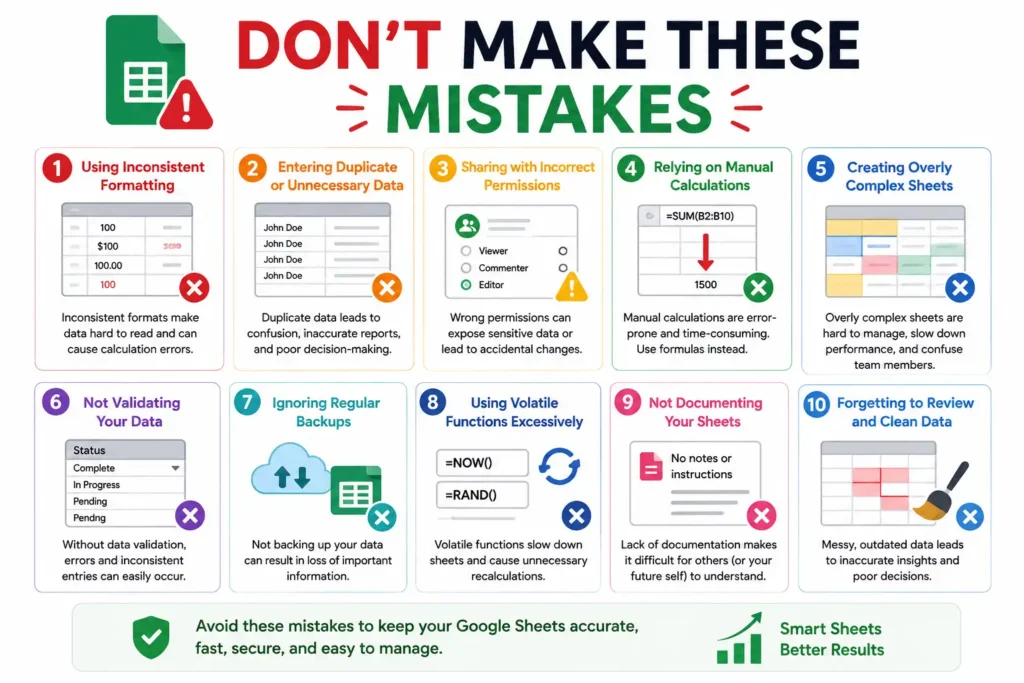
Many users fail to take full advantage of Google Sheets because they overlook simple best practices. Common mistakes include using inconsistent formatting, entering duplicate data, sharing files with incorrect permissions, relying on manual calculations instead of formulas, and creating overly complex spreadsheets without proper organization.
Ignoring backups or failing to validate data can also lead to costly errors. By keeping spreadsheets clean, structured, and automated whenever possible, you can improve accuracy, collaborate more efficiently, and maintain reliable data for better decision-making in both personal and professional projects.
Frequently Asked Questions
What is Google Sheets used for?
Google Sheets is used for budgeting, financial tracking, project management, inventory control, data analysis, reporting, collaboration, scheduling, customer management, and many other personal or business tasks. Its cloud-based design allows users to work together in real time from virtually any internet-connected device.
Is Google Sheets free to use?
Yes, Individuals can create, edit, and share spreadsheets without paying. Businesses that need advanced collaboration, security, storage, and administrative features can upgrade to paid Google Workspace plans for additional functionality.
Can Google Sheets replace Microsoft Excel?
For many users, yes. Google Sheets provides formulas, charts, pivot tables, collaboration, and automation features that handle most everyday spreadsheet tasks. However, organizations requiring advanced Excel macros, complex VBA programming, or specialized enterprise functions may still prefer Microsoft Excel for those specific workloads.
Is Google Sheets suitable for businesses?
Absolutely. Businesses of all sizes use Google Sheets for financial reporting, project management, CRM tracking, inventory management, dashboards, employee scheduling, and collaborative planning. Its cloud-based collaboration, automation capabilities, and seamless Google Workspace integration make it a practical solution for modern business operations.
Can Google Sheets be used offline?
Yes. Google Sheets supports offline editing when Offline Mode is enabled through Google Drive settings. Users can continue viewing and editing spreadsheets without an internet connection, and all changes automatically synchronize with the cloud once internet access is restored.
How secure is Google Sheets for storing data?
Google Sheets uses Google’s secure cloud infrastructure, including encryption during data transmission and storage. Additional security features such as two-factor authentication, permission controls, version history, and administrator policies in Google Workspace help businesses protect sensitive information and reduce unauthorized access.
What are the biggest advantages of Google Sheets?
The biggest advantages include free cloud access, real-time collaboration, automatic saving, cross-device compatibility, powerful formulas, built-in charts, automation through Google Apps Script, seamless Google Workspace integration, and easy sharing. These features help individuals and organizations improve productivity while simplifying data management and teamwork.
📌 Don’t Miss These Articles: What Is Droven.io? Complete Beginner’s Guide
Conclusion
Google Sheets has evolved into much more than a basic spreadsheet application. It combines cloud collaboration, automation, data analysis, and powerful productivity features into one flexible platform that supports individuals, educators, freelancers, and businesses alike. Whether you’re managing budgets, tracking projects, analyzing business performance, or building automated workflows, Google Sheets provides the tools needed to work smarter and faster. By applying the best practices and features covered in this guide, you can maximize efficiency, improve collaboration, and unlock the full potential of one of today’s most versatile productivity tools.
🔥 Stay curious, stay ahead. Follow Tech Fueler.