
Why Is Google Chrome Running Slow?
Google Chrome can slow down for several reasons, and the problem is often a combination of browser settings and system resources. Too many open tabs, outdated browser versions, excessive extensions, corrupted cache files, malware, or limited RAM can all reduce browsing speed. Chrome is a multi-process browser, meaning every tab and extension consumes memory independently. According to Google’s Chrome team, memory usage increases as more tabs and extensions remain active. Older computers with limited storage or background apps running simultaneously may experience even greater slowdowns. Identifying the real cause before applying fixes helps improve performance more effectively.
Check Chrome’s Performance Before Making Changes
Before adjusting settings, identify what’s actually slowing Chrome down. Open Chrome Task Manager by pressing Shift + Esc to see which tabs, extensions, or processes consume the most CPU and memory. You can also review your computer’s Resource Monitor or Task Manager to check overall RAM, disk, and processor usage. Google recently introduced built-in Performance tools that highlight memory-saving opportunities and inactive tabs. Measuring browser performance first prevents unnecessary changes and helps you focus on the settings or extensions that are genuinely affecting Chrome’s speed and responsiveness.
Close Unnecessary Tabs and Background Processes
Keeping dozens of tabs open may seem convenient, but it significantly increases Chrome’s memory usage. Every active tab runs its own process, while some websites continue executing scripts even when you’re not using them. Background applications, cloud sync tools, and browser services also compete for system resources. Close tabs you no longer need and exit programs running unnecessarily in the background. If you frequently multitask, organize research using bookmarks, Reading List, or tab groups instead of leaving everything open. This simple habit can noticeably improve browsing speed and overall system responsiveness.
🎯 More Helpful Guides: 5 Best Laptops for Graphic Designers in 2026
Remove Unused Extensions and Disable Problematic Add-ons
Browser extensions add useful functionality, but installing too many can slow Chrome considerably. Some extensions constantly run background scripts, monitor web pages, or request network access, increasing CPU and memory usage. Review your installed extensions regularly and remove anything you no longer use. Keep only trusted extensions from reputable developers with strong user ratings and recent updates. Google’s Chrome Web Store recommends limiting unnecessary extensions to improve browser stability and security. Fewer active add-ons generally result in faster page loading, smoother browsing, and lower resource consumption.
Clear Cache, Cookies, and Browsing Data
Chrome stores cached files, cookies, and browsing data to load websites faster during future visits. Over time, however, this stored data can become outdated, corrupted, or excessively large, leading to loading errors and reduced browser performance. Clearing cached images, temporary files, and unnecessary cookies refreshes Chrome and resolves many common browsing issues. While you may need to sign back into certain websites afterward, the browser often feels more responsive. Google recommends periodically clearing browsing data, especially when websites display outdated content or pages fail to load correctly.
Enable Chrome Performance Features for Better Speed
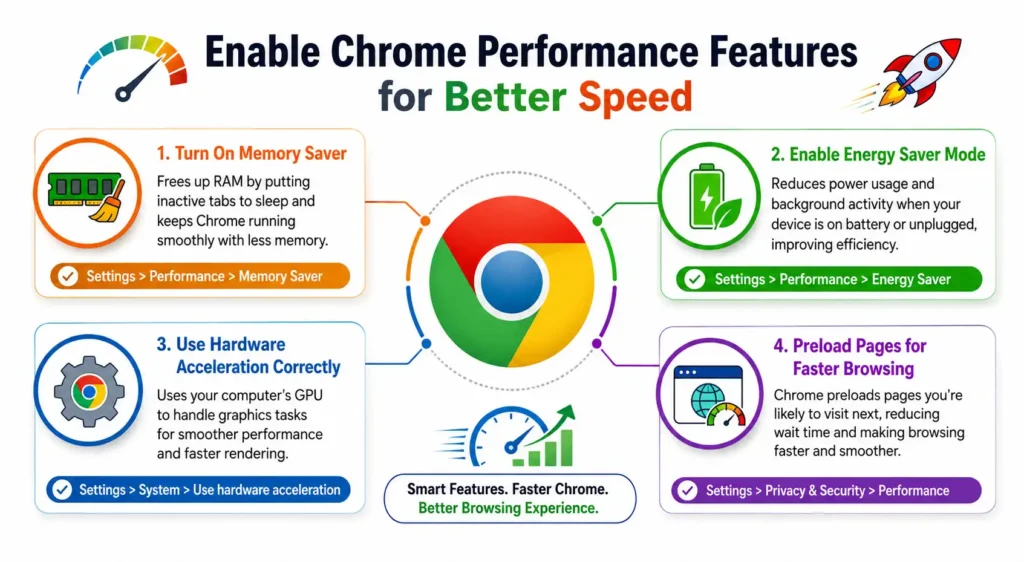
Google Chrome includes several built-in performance tools that can make browsing noticeably faster without installing third-party software. These features reduce memory usage, improve battery efficiency, speed up page loading, and optimize how Chrome uses your computer’s hardware. Most of them are available in the browser’s Performance settings and can be enabled with just a few clicks. Google continues improving these tools through regular Chrome updates, making them one of the easiest ways to boost browser speed. Enabling the right performance features helps Chrome run smoother while using fewer system resources overall.
Turn On Memory Saver
Memory Saver automatically frees RAM from inactive tabs while keeping them available to reopen instantly when needed. This feature is especially useful if you regularly work with multiple tabs throughout the day. Google reports that Memory Saver can significantly reduce Chrome’s memory usage by putting inactive tabs to sleep instead of keeping them fully active. You can enable it by going to Settings > Performance > Memory Saver.
Enable Energy Saver Mode
Energy Saver reduces Chrome’s power consumption when your laptop battery runs low or when the device is unplugged. It limits background activity, visual effects, and unnecessary browser tasks without affecting normal browsing. While designed primarily to extend battery life, it can also improve system responsiveness on lower-powered devices. Enable it under Settings > Performance > Energy Saver for better efficiency.
Use Hardware Acceleration Correctly
Hardware Acceleration allows Chrome to use your computer’s GPU instead of relying only on the CPU for graphics-intensive tasks like video playback, animations, and web applications. On most modern computers, keeping this feature enabled improves overall performance. However, if Chrome experiences screen flickering or crashes, disabling and re-enabling the setting can resolve compatibility issues. Find it under Settings > System.
Preload Pages for Faster Browsing
Chrome’s Preload Pages feature predicts which websites you’re likely to visit next and loads parts of those pages in advance. This reduces waiting time when opening frequently visited websites and improves navigation speed. Google uses browsing patterns and network predictions to make this feature more effective while balancing privacy. Enable it by visiting Settings > Privacy and Security > Performance.
🎯 More Helpful Guides: 10 Best Uses of Google Sheets for Work & Business
Update Google Chrome and Your Computer
Running outdated software is one of the most common reasons Chrome becomes slow or unstable. Every Chrome update includes performance improvements, bug fixes, security patches, and compatibility enhancements that help websites load faster and run more efficiently. Likewise, keeping Windows or macOS updated ensures Chrome can fully utilize the latest drivers, security improvements, and hardware optimizations. Google releases Chrome updates approximately every four weeks, with important security fixes arriving even sooner when necessary. Regularly updating both your browser and operating system helps maintain fast, stable, and secure browsing performance.
Optimize Chrome Settings for Maximum Speed
Beyond basic cleanup, several Chrome settings directly influence browsing speed and responsiveness. Optimizing these settings reduces unnecessary background activity, improves startup time, and prevents unwanted processes from consuming valuable system resources. Small adjustments often deliver noticeable improvements, especially on older computers or systems with limited RAM. Instead of installing browser optimization tools, use Chrome’s built-in settings to customize how the browser launches, loads websites, handles permissions, and downloads files. These simple changes create a smoother browsing experience while maintaining security and overall browser stability.
Reset Chrome to Default Settings
If Chrome remains slow after trying other fixes, resetting browser settings can eliminate hidden configuration problems. This restores startup settings, search engine preferences, disabled extensions, and temporary configurations without deleting bookmarks, saved passwords, or browsing history. It’s an effective way to fix performance issues caused by incorrect settings or unwanted changes. Use Settings > Reset Settings to restore Chrome’s default configuration.
Manage Startup Pages
Too many startup pages increase Chrome’s launch time because every page loads simultaneously when the browser opens. Review your startup settings and remove websites you no longer need. Consider opening the New Tab page instead of multiple web pages if faster startup is your priority. A lighter startup configuration helps Chrome launch more quickly and reduces initial memory usage.
Disable Unnecessary Notifications and Permissions
Many websites request permission to send notifications, access your location, or use your camera and microphone. Although convenient in some cases, excessive permissions can create unnecessary background activity. Review your site permissions periodically and revoke access for websites you no longer trust or use. Limiting unnecessary notifications also reduces browser interruptions and helps Chrome focus on active tasks instead of background requests.
Improve Download and Browsing Performance
Downloads running in the background, unstable internet connections, and overloaded DNS caches can all affect browsing speed. Pause unnecessary downloads while browsing resource-intensive websites and close applications consuming network bandwidth. Using a reliable internet connection and restarting your router occasionally can also improve page loading times. Faster network performance allows Chrome to deliver a smoother browsing experience with fewer interruptions.
Scan for Malware and Fix Browser Issues

Malware, browser hijackers, and potentially unwanted programs are common causes of slow browser performance. These threats may inject advertisements, redirect searches, consume CPU resources, or install unwanted extensions without your knowledge. Even if Chrome appears normal, hidden software running in the background can significantly reduce browsing speed. Performing regular security scans helps identify these problems before they become more serious. Combining Chrome’s built-in security tools with a reputable antivirus solution improves browser performance while protecting your personal information and online activity.
Remove Harmful Software Affecting Chrome
Unwanted software can modify browser settings, install suspicious extensions, and generate constant background activity that slows Chrome. Remove recently installed applications you don’t recognize and uninstall extensions from unknown developers. If browser redirects or unwanted ads continue, perform a complete malware scan. Eliminating harmful software often restores Chrome’s normal speed and prevents recurring performance problems.
Run Chrome Safety Check
Chrome’s Safety Check quickly scans your browser for security issues that may impact performance. It verifies whether Chrome is updated, checks for compromised passwords, reviews installed extensions, and identifies potentially harmful settings. Running this tool regularly helps maintain both browser speed and security. You can access it from Settings > Privacy and Security > Safety Check.
Use Trusted Antivirus Tools for Full System Scans
If Chrome continues running slowly after applying browser fixes, the issue may exist elsewhere on your computer. Perform a complete system scan using a trusted antivirus solution such as Microsoft Defender, Bitdefender, Norton, or ESET. Independent testing organizations like AV-TEST consistently evaluate these security products for malware detection and system performance, making them reliable choices for identifying threats that affect browser speed.
Advanced Tips to Make Chrome Faster Like a Pro
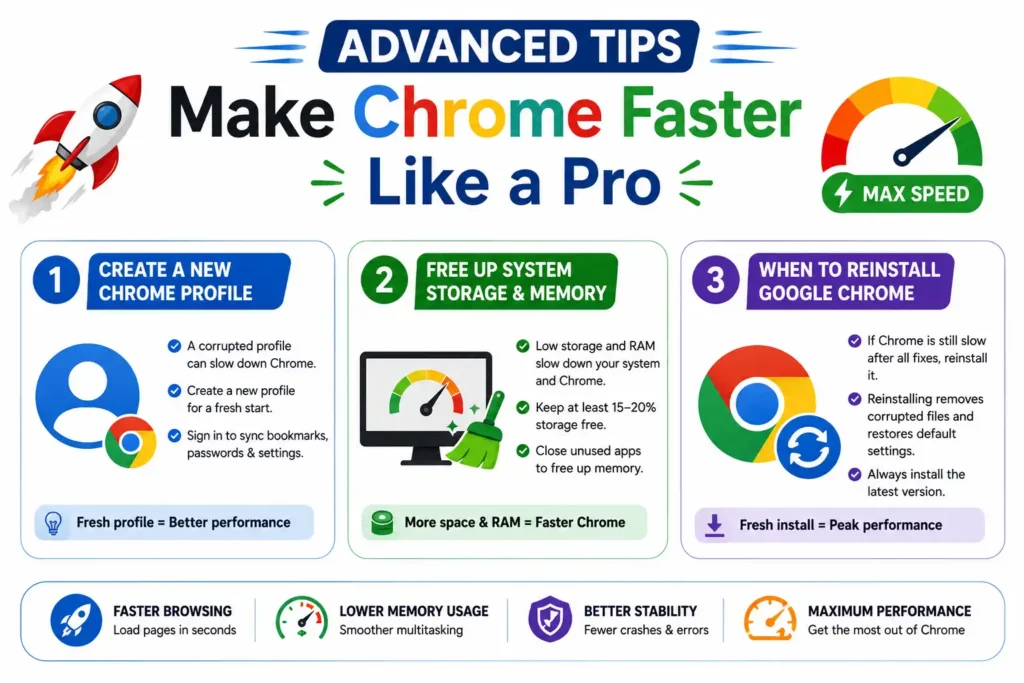
If you’ve already applied the basic performance fixes and Chrome still feels sluggish, a few advanced optimizations can make a noticeable difference. These methods focus on improving browser efficiency, reducing system bottlenecks, and resolving profile-related issues that standard troubleshooting may not fix. Power users often use these techniques to maintain consistent performance, especially on older computers or systems used for heavy multitasking. While these steps require a little more effort, they can significantly improve startup speed, reduce memory usage, and make Chrome feel more responsive during everyday browsing.
Create a New Chrome Profile
A corrupted Chrome profile can cause slow startup times, sync errors, extension conflicts, and browser crashes. Creating a new profile gives Chrome a fresh environment without affecting other profiles on your computer. If Chrome performs noticeably better with the new profile, your previous profile was likely causing the slowdown.
Free Up System Storage and Memory
Chrome performs best when your computer has sufficient free storage and available RAM. Nearly full drives can slow temporary file access, while limited memory forces the operating system to swap data between RAM and disk, reducing performance. Aim to keep at least 15% to 20% of your storage free for optimal system performance. Closing unused applications and removing unnecessary files also helps Chrome run more efficiently.
When to Reinstall Google Chrome
If Chrome remains slow after trying every optimization, reinstalling the browser may be the best solution. A fresh installation replaces corrupted program files, removes damaged configurations, and restores default browser components. Before uninstalling Chrome, ensure your Google account is syncing bookmarks, passwords, and settings. After reinstalling the latest version, install only the extensions you truly need to maintain long-term browser performance.
Frequently Asked Questions (FAQs)
Why is Google Chrome so slow on my computer?
Chrome usually becomes slow because of too many open tabs, excessive extensions, outdated software, malware, limited RAM, or high CPU usage from background applications. Running an older version of Chrome or using a computer with low available storage can also affect performance. Checking Chrome Task Manager helps identify the specific cause.
How can I make Google Chrome load pages faster?
You can speed up page loading by enabling Memory Saver, removing unnecessary extensions, clearing cache, updating Chrome, turning on Hardware Acceleration, using the Preload Pages feature, and closing unused tabs. A stable internet connection and updated operating system also contribute to faster browsing performance.
Does clearing cache make Chrome faster?
Yes, in many cases. Clearing cached files removes outdated or corrupted website data that may slow page loading or cause display issues. While Chrome rebuilds the cache as you browse, periodically clearing it can improve responsiveness and resolve website loading problems, especially after major browser updates.
Which Chrome extensions slow down browser performance?
Extensions that block ads, scan web pages, manage downloads, monitor browsing activity, or constantly synchronize data can consume significant CPU and memory resources. The biggest performance impact usually comes from having too many extensions installed rather than one specific extension. Keep only trusted and frequently used extensions enabled.
How much RAM does Google Chrome normally use?
There is no fixed amount because memory usage depends on the number of tabs, extensions, and websites you open. A few simple tabs may use only a few hundred megabytes, while dozens of active tabs with media-rich websites can consume several gigabytes of RAM. Chrome’s multi-process architecture prioritizes stability and security over minimal memory usage.
Why is Chrome using 100% CPU or high memory?
High CPU or memory usage often occurs because of heavy websites, video streaming, browser games, faulty extensions, malware, or multiple tabs running complex JavaScript applications. Chrome Task Manager can identify which tab or extension is consuming excessive resources. Closing or removing the problematic process usually resolves the issue quickly.
🎯 More Helpful Guides: Classroom 30X: The Future of AI-Powered Education in 2026
Conclusion
A faster Google Chrome experience doesn’t require expensive hardware or complicated software tweaks. Most performance problems can be resolved by removing unnecessary extensions, managing open tabs, clearing browsing data, enabling Chrome’s built-in performance features, keeping your browser updated, and scanning for malware regularly. For persistent issues, advanced solutions like creating a new Chrome profile or reinstalling Chrome can restore peak performance. By following these proven optimization techniques and performing routine browser maintenance, you can enjoy faster page loading, smoother multitasking, improved stability, and a more efficient browsing experience every day.
🌟 The future belongs to informed minds. Follow Tech Fueler.